This is a small, illustrative test document, not a customer’s file or a claim about all Word documents. It shows what the Word to PDF tool did in one recorded run on October 30, 2026. Use it to decide whether a fresh layout fits your document.
Download both sides
- Source DOCX — 3,704 bytes
- Actual PDF — 51,541 bytes
- Exact intermediate print HTML — 1,809 bytes
- Recorded environment and settings
- Source generator — Python 3, standard library only
The sample and generator are available under CC0: reuse them for your own checks. The DOCX contains headings, two bullet items, bold and italic text, a three-row table, a hyperlink, a deliberately blue, right-aligned line, a header, a footer and an explicit page break. Its source author property is the invented marker “Synthetic Author Marker”. No real personal information is included.
What actually survived
The PDF was opened for visual inspection and its text and properties were inspected with Poppler tools. This is a project check, not independent certification. The result was one US Letter page, 612 × 792 points, with selectable text.
| Source property | Observed output in this sample |
|---|---|
| Paragraph text and Heading 1 / Heading 2 | Text and heading hierarchy present; newly typeset. |
| Bold and italic runs | Present visually; Georgia bold and italic fonts embedded in the PDF. |
| Two-item bullet list | Both items and bullets present. |
| Three-row, two-column table | All cells present; new full-width table with borders. |
| Hyperlink to example.com | Present in HTML and as a PDF link annotation. |
| Arial source font, custom size and blue text | Replaced by the print stylesheet’s Georgia type, sizes and dark text. |
| Right alignment | Lost; the line is left-aligned. |
| Explicit Word page break | Lost; the text after it appears on the same PDF page. |
| Source header and footer | Absent from extracted HTML and PDF text. |
| Source author marker | Not present in the inspected PDF document properties. This is not a complete sanitization test. |
The output still has metadata: its title is synthetic-structure.docx; the creator identifies
the browser, the producer is Skia/PDF, and creation/modification timestamps are present.
Conversion is not redaction or a promise to remove sensitive metadata. Names can remain
in visible text, filenames, links and images. Inspect your own output before sharing it.
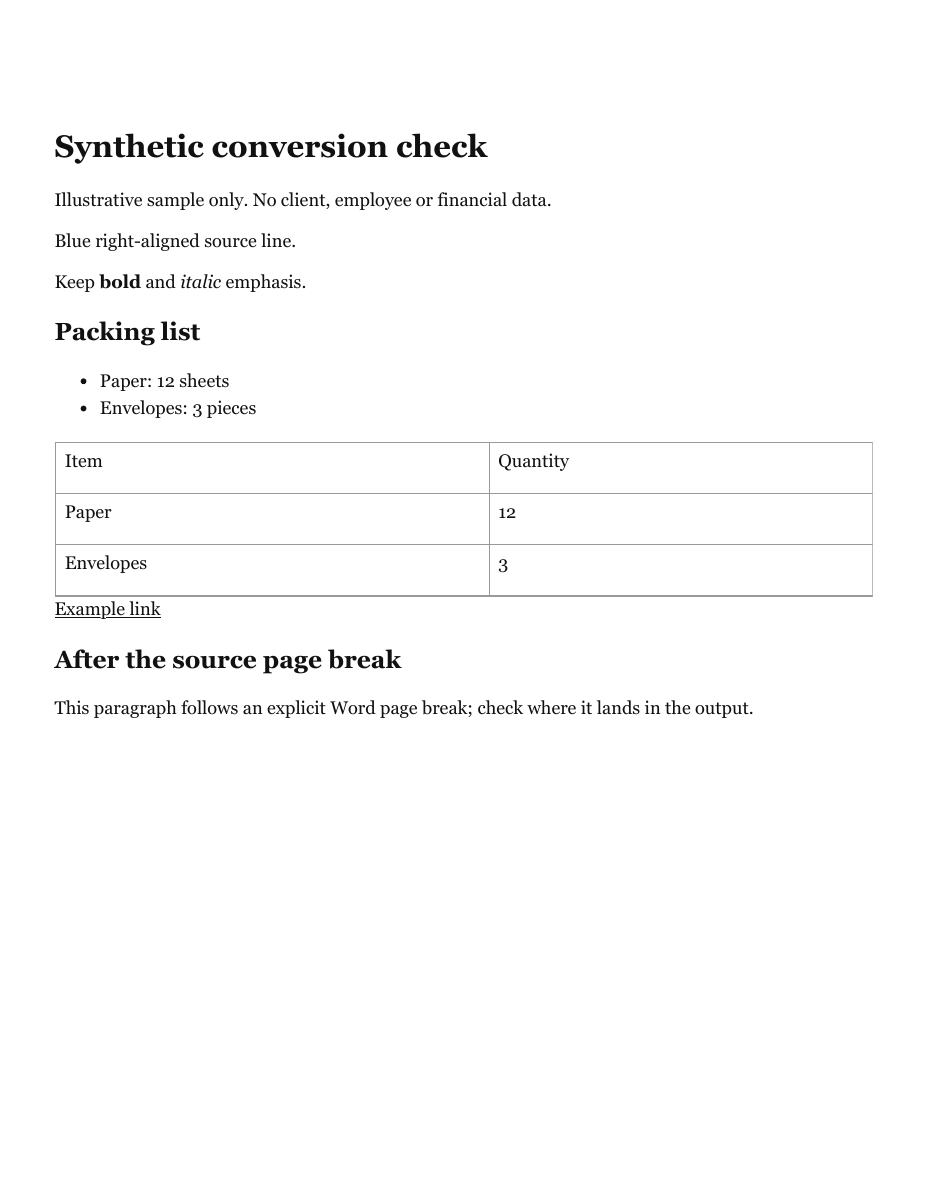
The image above is a rendering of the downloadable PDF, not a mockup or a Word comparison.
Reproduce the conversion
- Download the source DOCX. To rebuild that input instead, download the generator and run
python3 make-sample.pyin a folder of your choice. It writessynthetic-structure.docxbeside itself. You can inspect the source XML by opening the DOCX as a ZIP archive. - Open Word to PDF, choose the DOCX, select US Letter and Normal page margin, then choose Convert to PDF.
- In the browser print dialog, choose Save as PDF, keep US Letter and 100% scale, and turn off the browser’s extra headers and footers. Check every page before saving.
- Compare the saved file with the source and the table above. Look for the heading, emphasis, both list items, all six table cells and the paragraph after the source page break. Check document properties as well as the visible page.
For a direct look at the intermediate stage, open the downloaded print HTML in a browser and print it with the same settings. Fonts, browser versions, platform and print-dialog overrides can change line wrapping, pagination, metadata and file size. A matching byte count is not required; the observations above are the check.
Recorded environment and method
- Chrome 156.0.8078.80, headless on macOS / Darwin 27.2.0; platform
MacIntel. - Mammoth 1.12.1, using this site’s existing
docToHtmlconversion. - US Letter; Normal margin: the stylesheet sets a 36-point page margin and also adds 36-point vertical body padding.
- The actual tool’s file input and Convert button produced its print iframe through
docToHtml→buildPrintDocument→printDocument. The unchanged iframe document is the downloadable HTML. - The recorded PDF used Chromium’s print engine through Playwright
page.pdfon that unchanged document, withpreferCSSPageSize: true,printBackground: trueanddisplayHeaderFooter: false. A native Save as PDF dialog was not automated. - The tool completed with both Letter and A4 receipts and no page errors in this run. Only the Letter PDF is published here.
What this check does not establish
This sample does not cover images, nested or merged tables, tracked changes, comments, text boxes, columns, fields, accessibility tagging, every font, other browsers or malformed files. The published PDF was not tagged; selectable text alone does not establish an accessible PDF. No Word-rendered reference PDF was produced, so this is not a visual fidelity score against Word.
Mammoth converts document structure; it is not Word’s page-layout engine. The losses above are a reason to use Word’s own export when source layout must be retained. Read the formatting guide for preparation advice, and check your own document even if it looks simple.